
Start or join a meeting
Run a live call over the project and let guests join from a public link.
Meetings run right over the project, so the call happens beside the board, notes, and chat it's about. Start or join from chat, and after the call you get AI notes and action items.
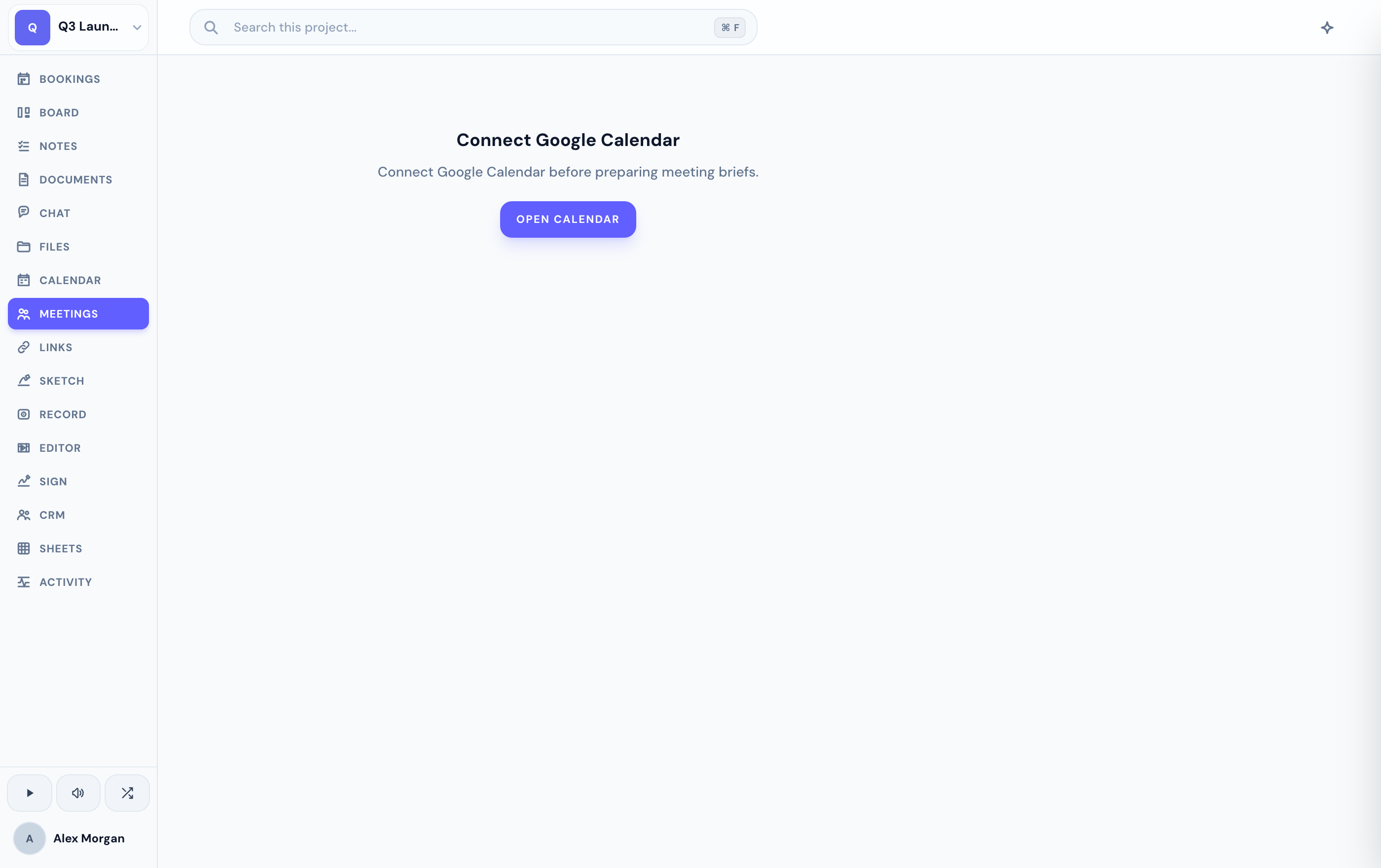
Start or join a call
A meeting surfaces in the project's chat with a join bar and a lobby panel.
Use the join bar to enter the call, or wait in the lobby before it starts.
When you're finished, end or archive the meeting from its channel.
Calls run on LiveKit for voice and video. If you don't see the Meetings tab, an admin may have disabled it for your project.
Bring in outside people
You don't need to add someone to the project just to have them in a call. External guests join through a public meeting link — no account required. See inviting external guests for the details.
Related
Was this helpful?