
Channels and direct messages
Organize project conversation into channels and DMs, all scoped to one project.
Every project has its own chat, so conversation happens next to the board, notes, and files instead of in a separate app. Channels group discussion by topic; direct messages keep things one-to-one.
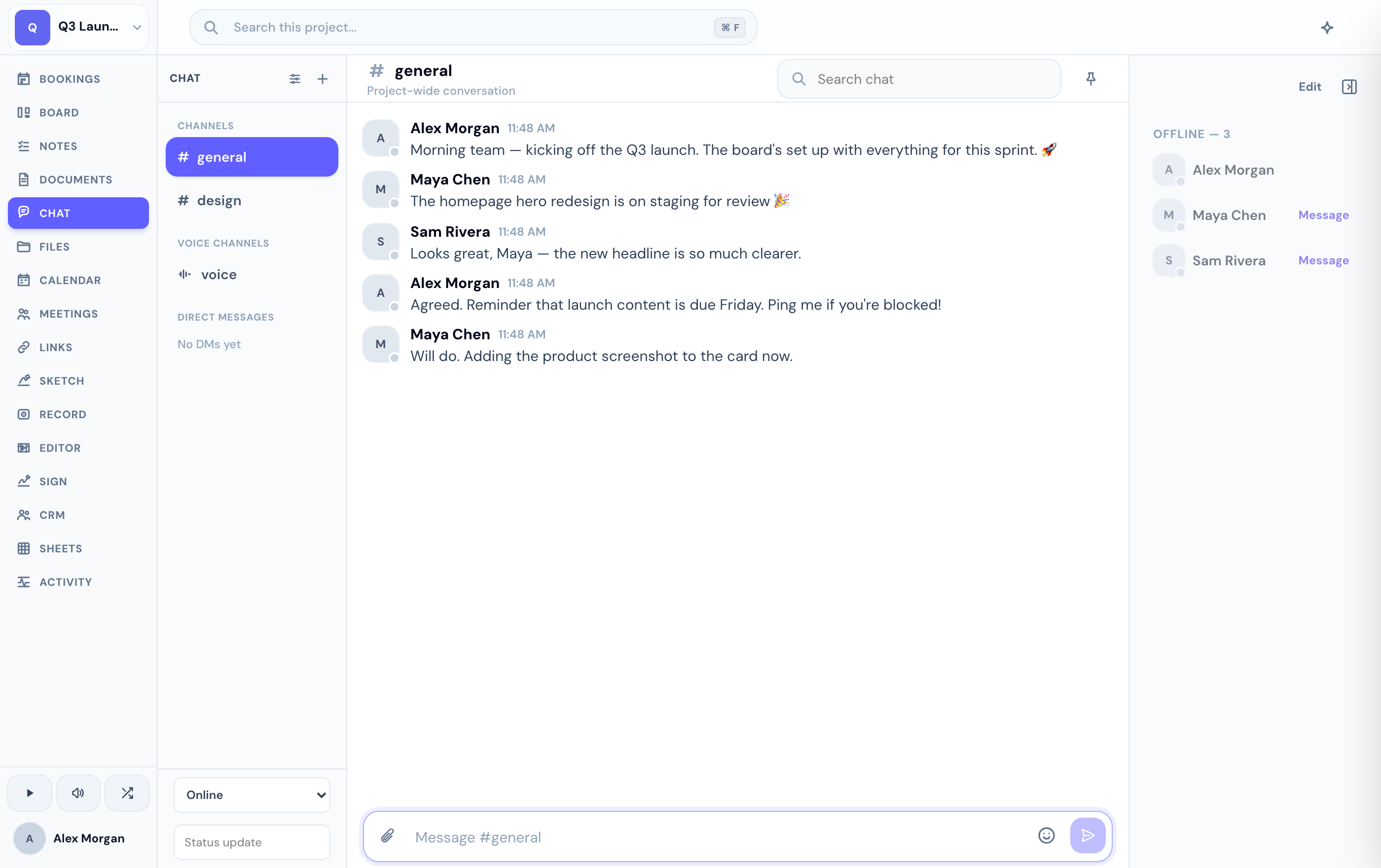
Create and organize channels
Choose New channel and name it for a topic — for example general, design, or launch.
Drag channels to arrange them the way your project thinks. The order is yours to set.
Open a channel's info panel to add a description or archive it when the topic wraps up.
Channels are scoped to the project you're in — they don't span your other projects. Some channels can be private, gated to specific participants, such as a meeting's own channel.
Direct messages
Start a New DM to talk with a teammate one-to-one within the project, and close it when you're done. DMs live in the same chat sidebar as channels, so everything project-related stays in one place.
If you don't see the Chat tab in a project, an admin may have turned it off for your project in the members settings.
Related
Was this helpful?