
Files and folders
Upload files, organize them into folders, and attach them to cards and notes.
Every project has its own Files tab — durable cloud storage for the documents, images, and assets that belong to the work, kept beside the board, notes, and chat.
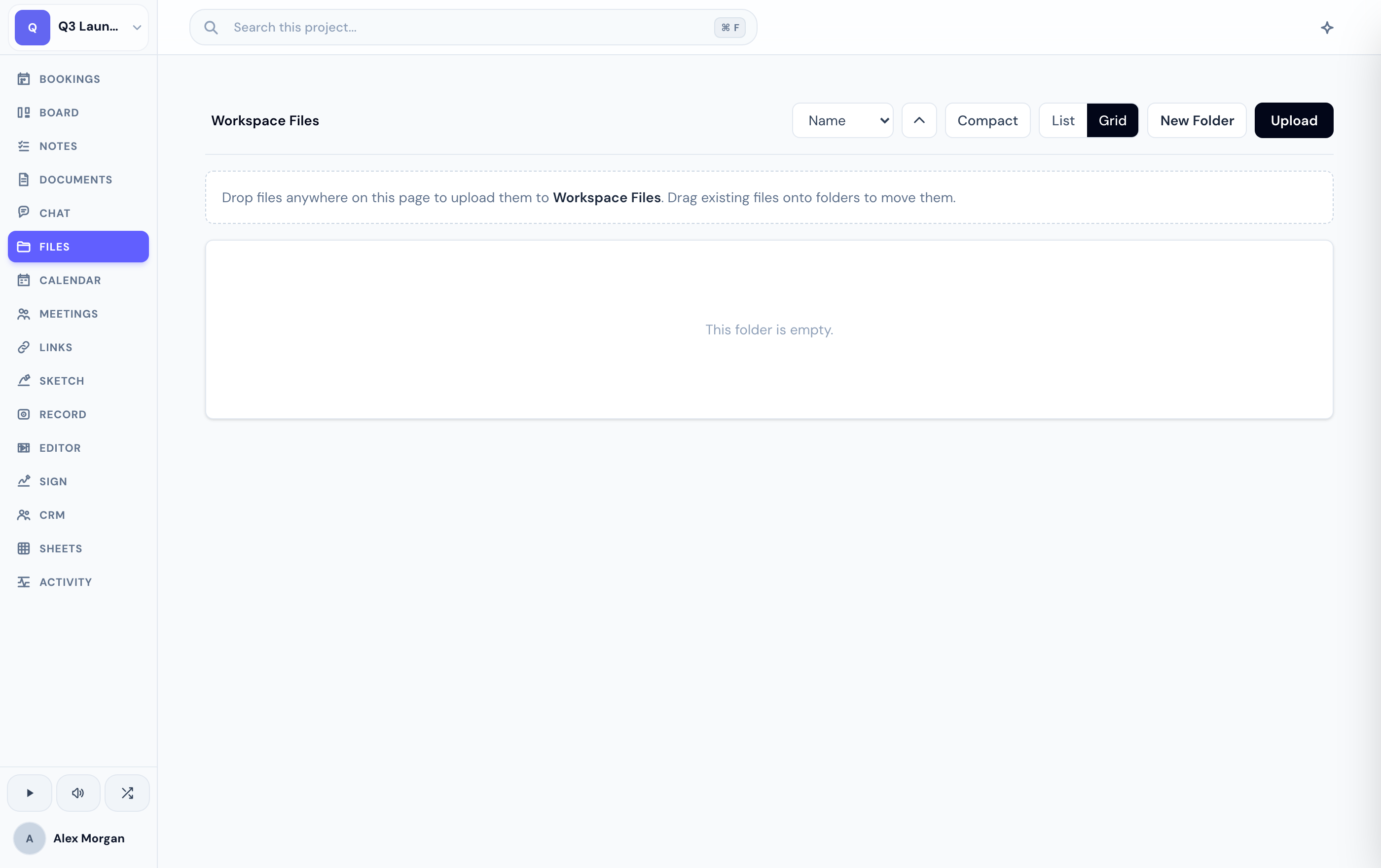
Organize your files
Drag files in or use the upload button. They land in the current folder.
Make a folder to group related files, then move files into it.
Use any file or folder's menu to rename it, move it, download it, or delete it. Toggle the sort direction to reorder the list.
Attach files to work
You can attach files directly to a board card (in its Files section) or to a note, so the document someone needs sits right next to the task or decision it supports — not in a separate drive.
Share a file or folder
Publish a single file or a whole folder as an unlisted, read-only public link when you need to send something outside the project. See publishing a public link for how sharing works.
If you don't see the Files tab, an admin may have disabled it for your project.
Related
Was this helpful?