
Manage your profile
Set your display name, username, profile photo, and time preferences in Settings.
Your profile is how teammates see you across a project — your name, username, and photo. You manage all of it in Settings → Profile.
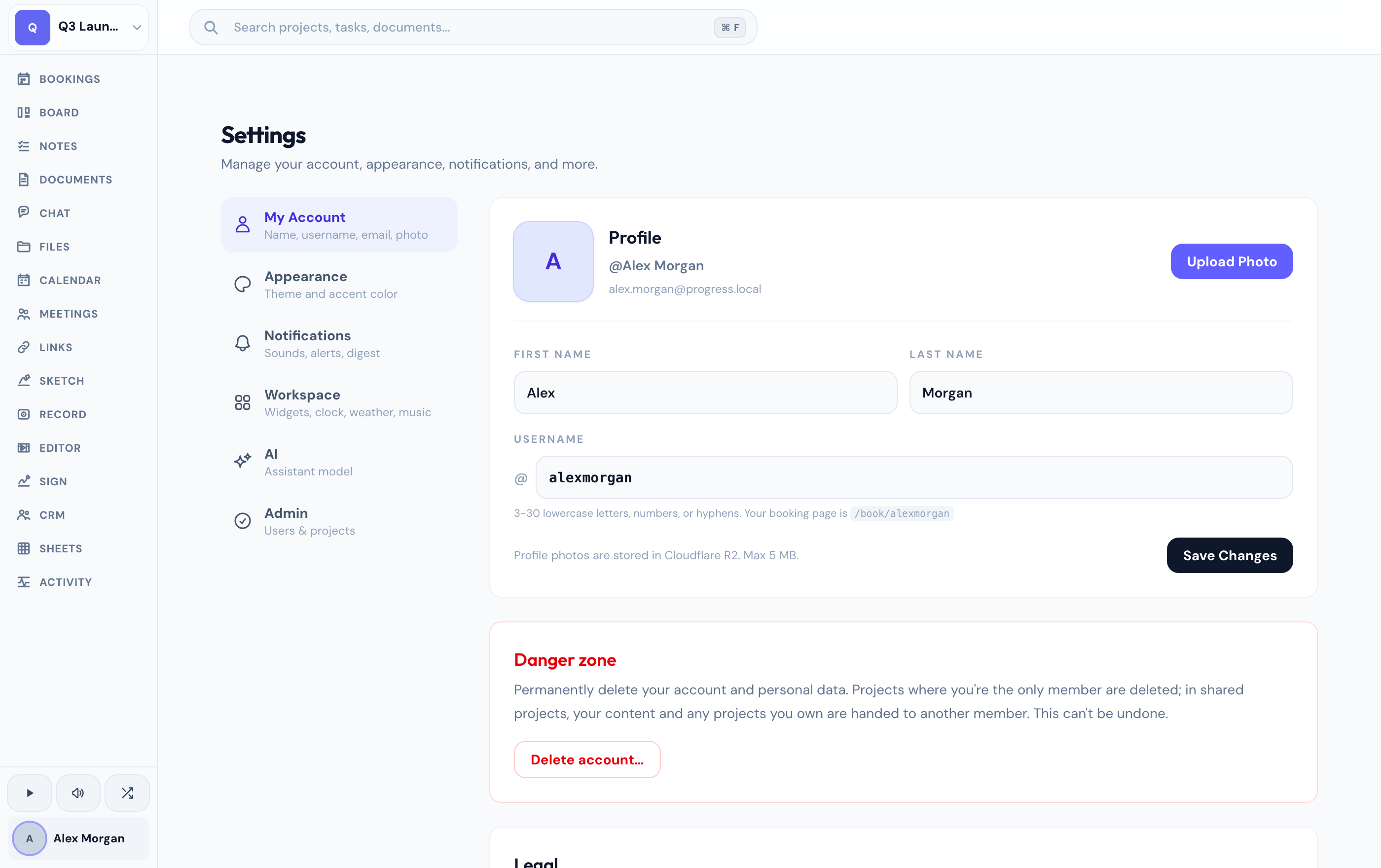
Edit your profile
1
Open Profile settings
Go to Settings → Profile.
2
Update your details
Change your display name, username, or profile picture, then save.
- Display name — the name shown on your comments, messages, and card activity.
- Username — a unique handle used for @mentions.
- Profile photo — your avatar throughout the app.
- Time settings — how times are presented for you.
Your email address is your sign-in identity and isn't changed from here. See change your email or username.
Where your profile appears
Your name and photo show up on chat messages, document mentions, board card comments, and the project activity log — so keeping them current helps teammates recognize your work at a glance.
Related
Was this helpful?