
Google Calendar
Connect Google Calendar for two-way sync inside the workspace.
Connect your Google Calendar and your events show up right inside the project — and events you create in Progress sync straight back to Google, with a Meet link and invites if you want them.
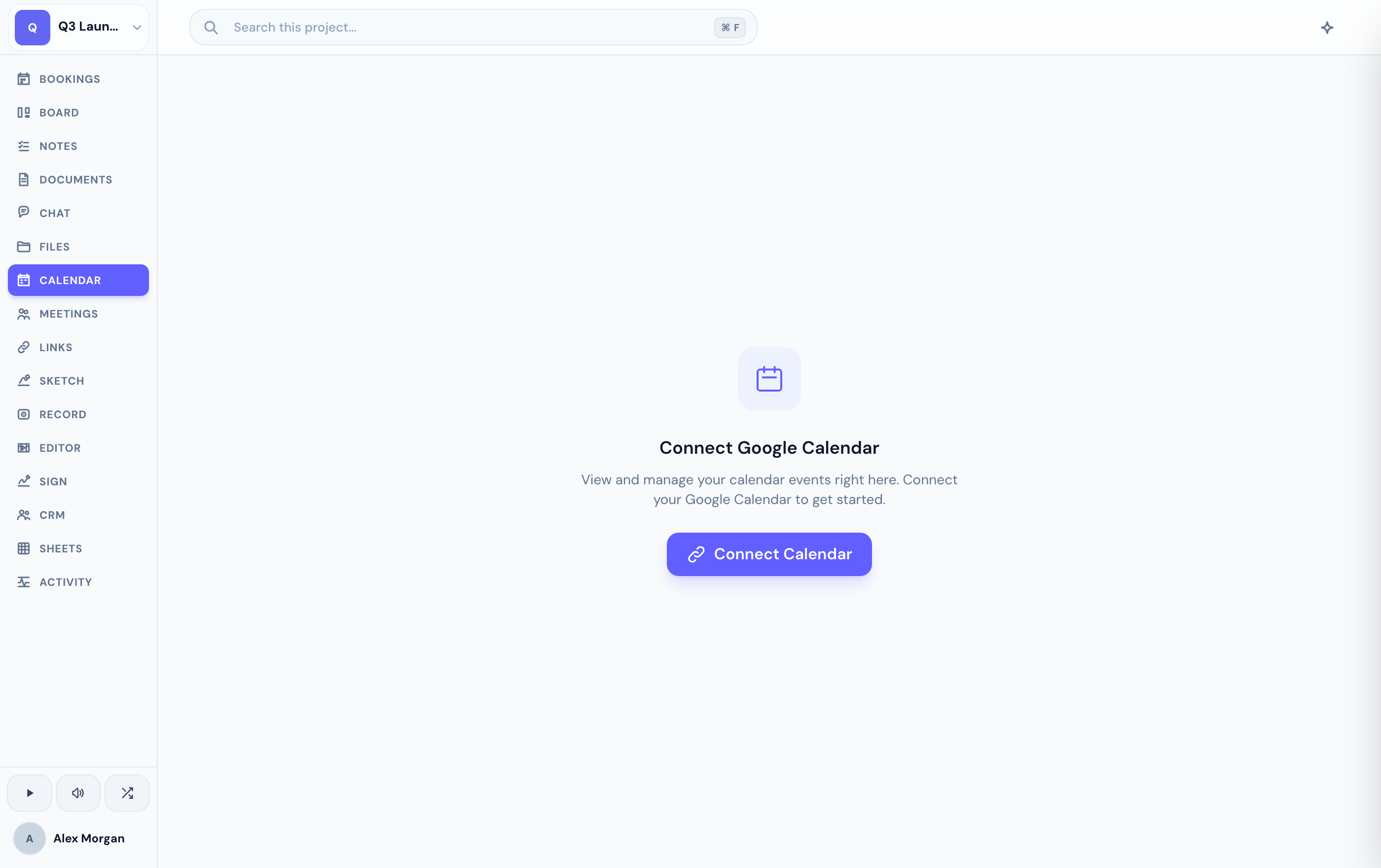
Connect your calendar
In a project, open Calendar from the sidebar.
Choose Connect Google Calendar and sign in. Progress reads every calendar you can see, not just your primary one.
Add an event without leaving the workspace. Optionally attach a Google Meet link and invite attendees — it all syncs to Google.
If your Google connection is revoked or expires, new events and Meet links can silently stop being created. Reconnect Google Calendar from the Calendar tab to fix it.
Availability for bookings
Your connected calendar also powers booking pages — when someone books time with you, Progress checks your real Google availability so you never get double-booked, then creates the event and Meet link automatically.
Related
Was this helpful?